Fix Common CCTV Camera Glitches in Minutes
A camera system is useful only when it records clear video without any settings problems. This guide explains practical security camera troubleshooting steps that home and business users can complete safely. Check the product manual before changing advanced settings.
1. Begin with a Fast System Check
First, determine whether a single camera, multiple cameras, or the entire system has stopped working. If one CCTV camera is offline, the issue may involve its cable, power source, network address, password, or channel. If all cameras are unavailable, inspect the recorder, router, and main power source.
Follow this order:
- Check power and status lights. Confirm that the camera, recorder, switch, and monitor have power. A loose plug, failed adapter, or tripped outlet may stop the system.
- Inspect visible connections. Make sure Ethernet, coaxial, HDMI, and power cables are secure. Look for damage, moisture, or loose connectors.
- Restart equipment correctly. A controlled restart may clear a temporary fault. Shut devices down properly before restoring power.
This basic security camera troubleshooting process can solve many short-term glitches without changing important settings.
2. Fix a Black Screen or No Video Message
A black screen usually means the video signal is not reaching the recorder or display. Check the correct camera channel and monitor input, then inspect the connection.
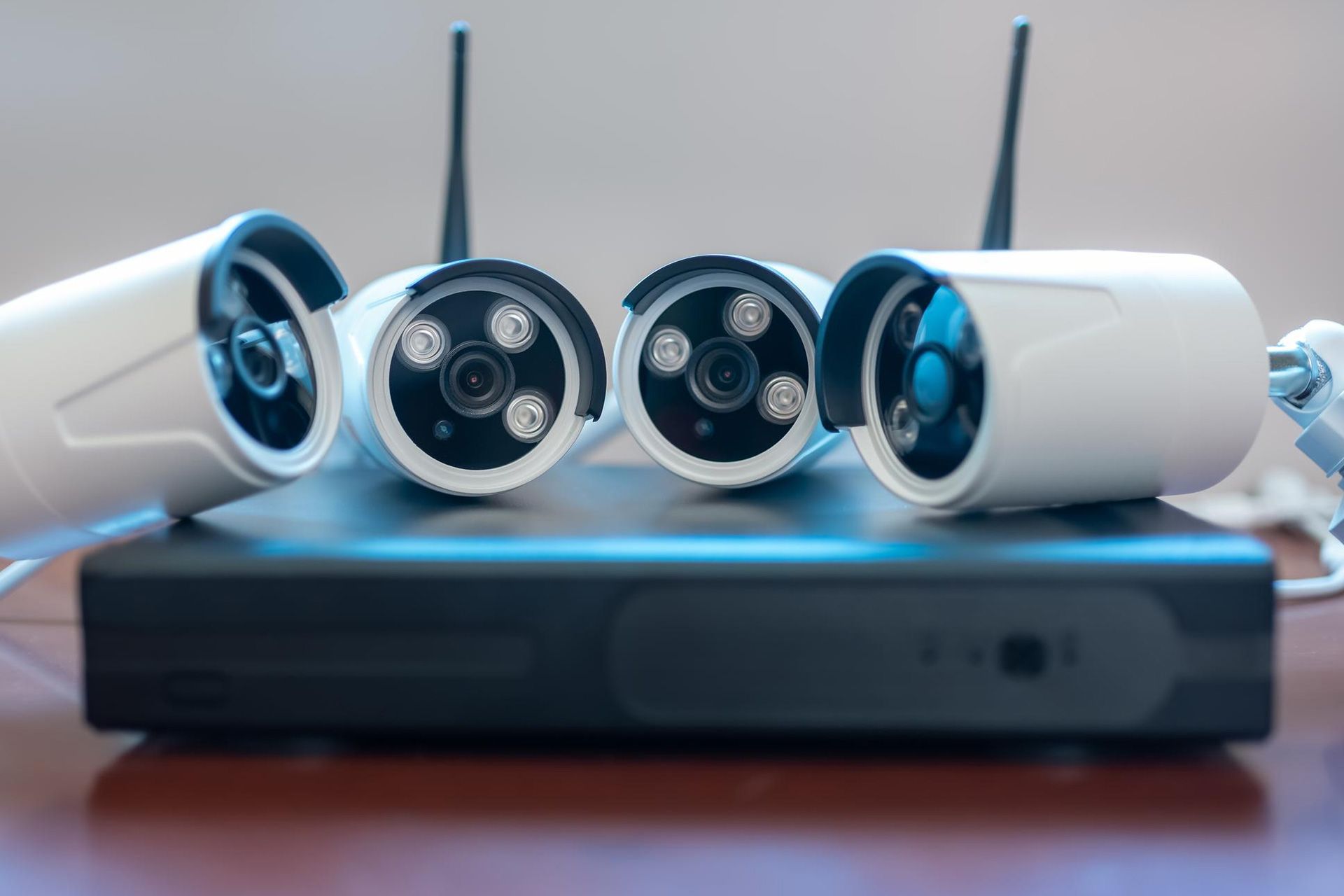
For an analog CCTV security camera, test the coaxial cable and separate power supply. Test it on a known working, compatible channel to determine whether the fault lies with the camera, cable, or recorder input.
For an IP model, check the Ethernet cable and the Power over Ethernet port. Replace the cable with a tested one if you suspect damage.
Do not immediately restore factory settings. A reset may remove network details, recording rules, and user accounts. Use it only after checking the manual or speaking with a technician.
3. Bring an Offline IP Camera Back Online
An IP camera needs power, a working network connection, and correct settings. It may appear offline after a router change, a power cut, a password update, or a network adjustment.
Security camera troubleshooting starts by checking that the recorder and camera are on the expected network. Check the status in the recorder menu. A password error may mean the saved login no longer matches the password. An address conflict may mean two devices use the same IP address.
Review these points:
- Cable and switch port: Move the cable to a known working port or test it with proper equipment.
- Address and password: Confirm that the address belongs to the right network and that the recorder has the correct login details.
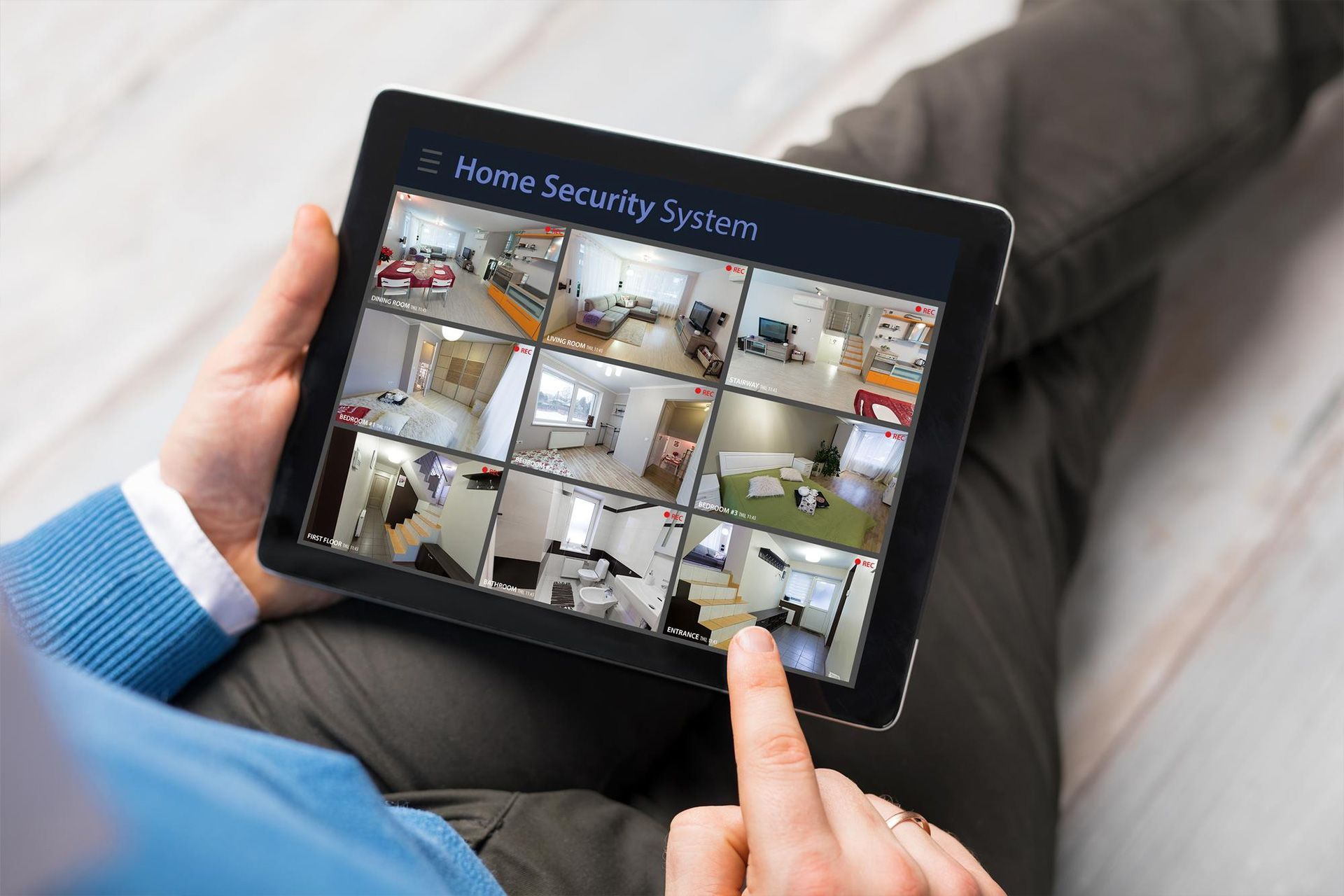
- Remote access: Local recording may work while the phone app remains offline. Check the router, internet connection, approved app, and remote access status.
Ask a technician to review an unclear network layout.
4. Clear Frozen or Delayed Video
Frozen video may come from a weak connection, an overloaded network, high stream settings, or recorder strain. Compare the live view on the recorder with the view on a phone or computer. If local video works but remote viewing fails, the issue is more likely due to the internet, the app, or the remote stream.
A CCTV security camera sends more data when resolution, frame rate, or image quality settings are high. Several cameras may place heavy demand on a recorder or network, but lower settings may reduce useful detail.
Close unused viewing sessions and restart the app. Note whether the problem affects a single device, a single camera, or only at certain times. These details make troubleshooting security cameras faster.
5. Improve Blurry or Washed-Out Images
Poor image quality does not always mean the camera has failed. Dirt, moisture, glare, focus, lighting, and image settings can affect the view.
Clean the lens cover with a suitable soft cloth. Make sure the installation film was removed. Check whether a wall, sign, or roof edge reflects infrared light into the lens at night.
For a blurry CCTV security camera, inspect focus and mounting stability. Wind, vibration, or a loose bracket may reduce clarity. If the image looks washed out, review the angle and backlight settings. Bright windows, headlights, and direct sunlight can hide detail.
Change one setting at a time and compare sample images.
6. Correct Night Vision Problems
Night faults may appear as a dark picture, white haze, or moving bright spots. Confirm whether the camera switches into night mode.
Dust, spider webs, rain, and insects near infrared lights may create bright marks. Clean the housing and move nearby objects away. A CCTV security camera behind ordinary glass may reflect its own infrared light, obscuring the scene.
7. Check Missing Recordings
Live video may work even when recording has stopped. Review the schedule, storage status, date, time, and channel settings. Make sure motion rules cover the correct areas and hours.
During security camera troubleshooting, note whether gaps affect a single channel or the entire system. Gaps across all cameras may indicate storage, power, timing, or scheduling issues. Gaps on one channel may involve that camera, its connection, or its recording rule.
Do not format a drive before confirming whether important footage must be saved. A qualified technician should assess storage errors or repeated failures.
8. Avoid Common Repair Mistakes
Quick action helps, but careless changes may make the fault harder to find.
- Change one setting at a time. Several changes can create new problems or hide the original cause.
- Use approved software and firmware. Unknown downloads may damage compatibility or security.
- Do not ignore damaged outdoor wiring. Moisture, heat, and physical damage can create electrical or network risks.
- Follow the official password recovery steps. Store approved login details securely.
Record error messages, affected channels, and recent changes.
Know When to Call a Professional
Stop working on equipment that smells burnt, becomes unusually hot, shows water damage, or has exposed electrical parts. Seek help when the recorder repeatedly restarts, storage errors persist, credentials are unavailable, or several CCTV feeds fail simultaneously.
Professional security camera troubleshooting is also useful after changes to routers, network switches, remote viewing, or recorder settings. A technician can test cables, review logs, protect recordings, and correct the fault without unnecessary resets.
Conclusion
Most CCTV glitches become easier to solve when you follow a clear order. Start with power, connections, and the affected channel. Then check the recorder, network, image settings, remote access, and recording schedule. Make one change at a time and document the result.
AMJ Technology Solutions provides CCTV installation and maintenance support for homes and businesses. Our team can inspect your CCTV security camera system, identify repeated faults, and help restore dependable monitoring.
Our tailored CCTV solutions help homes and businesses maintain clear visibility, dependable monitoring, and stronger protection across every critical area. Connect with us today to build a smarter security system that keeps you informed and in control.
FAQs
Why Does My Camera Keep Going Offline?
Repeated outages may come from unstable power, a damaged cable, weak network service, an address conflict, or incorrect login details. Track when the problem happens and test the physical connection first.
Can a Camera Work Without Internet Access?
Many systems can record locally without internet service. Internet access is usually needed for remote viewing, alerts, cloud functions, or app connections.
Why Can I See Live Video but Not Recorded Footage?
The recording schedule may be disabled, the wrong date may be selected, or the recorder may have a storage issue. Check the system time and storage status before formatting anything.
Should I Restart the System When Video Freezes?
A proper restart may clear a temporary fault. If freezing returns, continue troubleshooting the security camera by checking the connection, network load, stream settings, and recorder status.
How Can I Tell Whether the Camera or Cable Is Faulty?
Test the CCTV security camera by connecting it to a known working, compatible cable or channel. Then test a working camera on the suspect connection. Use professional help when voltage or compatibility is uncertain.
Disclaimer: The information on this website and blog is for general informational purposes only and is not professional advice. We make no guarantees of accuracy or completeness. We disclaim all liability for errors, omissions, or reliance on this content. Always consult a qualified professional for specific guidance.
Search
Recent Posts